


To download a video in Aloha on Android, touch and hold the video on the web page, tap Download video, and choose where to save the file. You can also download from the full-screen player or from the media toolbar.
Download from a web page
- Touch and hold the video on the web page.
- In the menu that opens, tap Download video.
- In the download window, change the file name if you want, and choose a folder under Recent or Location.
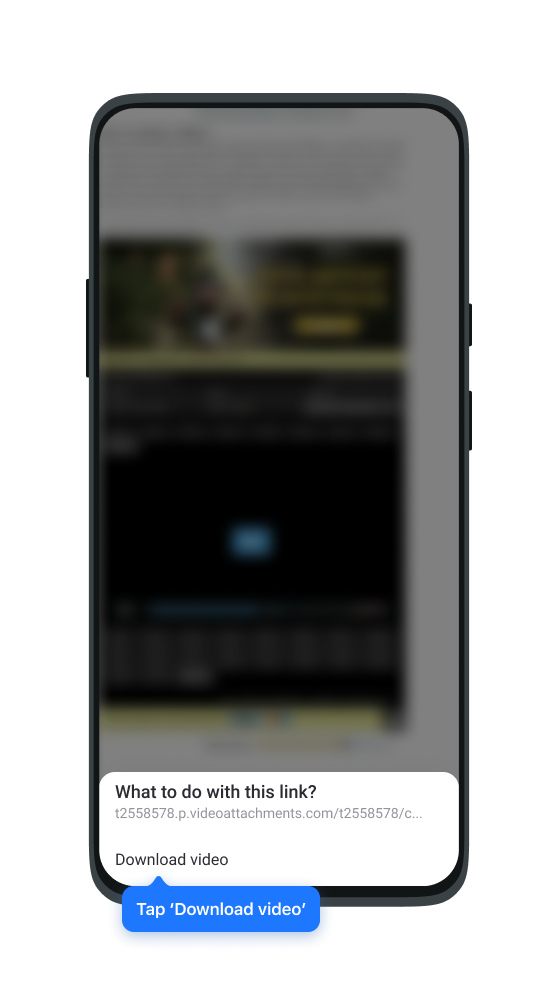
If you do not see Download video in the menu, the site's own player may be covering the video. Play the video in full screen and use the Download button in the player.
Download from the full-screen player
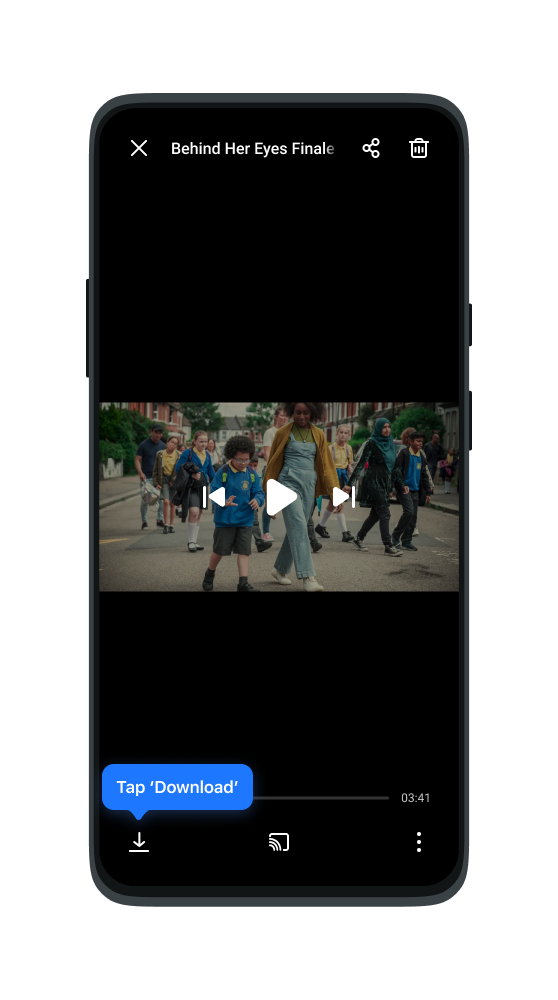
- Play the video in full screen.
- Tap the Download button. It is the first icon on the left in the bottom row of the player controls.
- In the download window, choose a folder for the file.
Download from the media toolbar
When a web page plays a video, Aloha shows a media toolbar above the address bar. Tap the Download button in that toolbar. If you do not see the media toolbar, check that Show media toolbar is turned on in Settings > Player.
Some sites do not allow video downloads. On these sites, Aloha shows a warning instead of downloading the video.