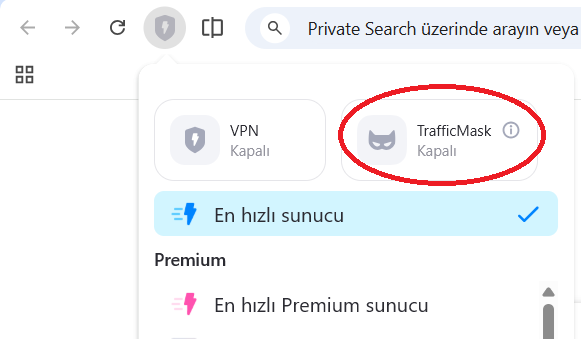
I'm installing Aloha from scratch, but TrafficMask won't open. It worked perfectly fine on the old 4.11.0.0 version. It doesn't work on newer versions.
1. Open Windows program cmd 2. In cmd, open the Aloha application folder, for example: C:\Users\YOUR_USER_NAME\AppData\Local\Aloha Mobile\Aloha\Application 3. Run Aloha from cmd using the following command: Aloha.exe --enable-logging=stderr -v=1 4. Reproduce the issue and send the full output from the cmd window to us.
Thank you,
Hi, please do the following:
1. Open Windows program cmd 2. In cmd, open the Aloha application folder, for example: C:\Users\YOUR_USER_NAME\AppData\Local\Aloha Mobile\Aloha\Application 3. Run Aloha from cmd using the following command: Aloha.exe --enable-logging=stderr -v=1 4. Reproduce the issue and send the full output from the cmd window to us.
Aloha's Traffic Mask needs to open a small local port on your computer (a port in the 127.0.0.1 loopback range, somewhere between 49152 and 65535) so that the browser can route its own traffic through it. From your log, Aloha is asking Windows for a free port, but every time it tries to actually use that port, Windows answers: "Only one usage of each socket address (protocol/network address/port) is normally permitted."
That's the Windows code WSAEADDRINUSE (error 10048). It means something on your system is blocking that port — either another program is using it, or Windows itself has reserved it.
The good news: this is almost always fixable in a few minutes without reinstalling anything.
Step 1 — Close every copy of Aloha first
Before anything else, make sure there isn't a leftover Aloha process still running and holding the port:
1. Close all Aloha windows (including the icon in the system tray near the clock — right-click → Quit). 2. Open Task Manager (Ctrl + Shift + Esc) → Details tab. 3. End any process named: - Aloha.exe - aloha_proxy.exe - aloha_service.exe 4. Start Aloha again and try Traffic Mask once more.
If it now works → done. If not, continue.
Step 2 — Reboot once
A clean reboot resets all network reservations. This alone fixes the issue for many users, especially after a Windows update. Reboot, then try Traffic Mask before opening any other app.
If it still fails, go to Step 3 — this is the most common real cause.
--- Step 3 — Check whether Windows has reserved the port (most common cause)
Windows features like Hyper-V, WSL2, Docker Desktop, Windows Sandbox, and Mobile Hotspot silently reserve big chunks of the high port range for their own use. While reserved, no other program can open those ports — even though nothing is actively listening on them. This is the #1 reason Traffic Mask suddenly stops working after a Windows update.
How to check
1. Open Command Prompt as Administrator (Start → type cmd → right-click → "Run as administrator"). 2. Paste this command and press Enter: netsh int ipv4 show excludedportrange protocol=tcp 3. You'll see a list like: Start Port End Port ---------- -------- 50000 50059 60000 60100 61400 61900 <-- if you see a range that covers ~61500, that's the problem ...
If you see a reserved range that includes the ports Aloha is trying to use (typically anywhere in 49152–65535), that's why Traffic Mask can't connect.
How to fix it
Still in the same Administrator Command Prompt, run these two commands one after the other:
net stop winnat net start winnat
This restarts the Windows NAT driver and clears the stale reservations. After it finishes, try Traffic Mask again — in most cases it starts working immediately.
If the problem comes back after every reboot, you can move Windows' dynamic port range higher so it stops grabbing the area Aloha uses:
netsh int ipv4 set dynamic tcp start=10000 num=10000 netsh int ipv6 set dynamic tcp start=10000 num=10000
Then reboot. (This is safe; it just tells Windows to allocate temporary outgoing-connection ports from a different range.)
--- Step 4 — If a real program is holding the port
If Step 3 didn't reveal a reserved range, then a different program on your computer is actually using that port. To find which one:
1. Open Command Prompt as Administrator. 2. Run: netstat -ano | findstr "127.0.0.1:615" 2. (the 615 matches the port numbers from your log; change if your log shows different numbers) 3. You'll see something like: TCP 127.0.0.1:61522 0.0.0.0:0 LISTENING 12345 3. The last number (12345) is the process ID of the program holding the port. 4. In Task Manager → Details tab, click the PID column header to sort by PID, find that number, and you'll see which program is the culprit.
Common offenders we see in practice: - Other VPN clients: NordVPN, ProtonVPN, ExpressVPN, Surfshark, OpenVPN, sing-box, v2rayN - Antivirus / web protection: Kaspersky, ESET, Avast (their HTTPS-inspection proxies) - Developer tools: Docker Desktop, WSL, Node.js / Python dev servers - Game launchers and chat apps: Steam, Discord, Epic Games Launcher, Spotify (local IPC) - Corporate / MDM agents preinstalled on work laptops
Either close that program before using Traffic Mask, or — if it's something you need running all the time — uninstall the conflicting service if it's a leftover from software you no longer use.
--- Step 5 — Still not working? Send us this:
1. The full output of: netsh int ipv4 show excludedportrange protocol=tcp netsh int ipv4 show dynamicport tcp netstat -ano | findstr LISTENING 2. The Aloha log file (you already sent this — thanks). 3. A short note about: which Windows version you have (Settings → System → About → "OS build"), whether you have Hyper-V, WSL, Docker Desktop, or any other VPN installed.
Thanks for the log! Please do the following:
Aloha's Traffic Mask needs to open a small local port on your computer (a port in the 127.0.0.1 loopback range, somewhere between 49152 and 65535) so that the browser can route its own traffic through it. From your log, Aloha is asking Windows for a free port, but every time it tries to actually use that port, Windows answers: "Only one usage of each socket address (protocol/network address/port) is normally permitted."
That's the Windows code WSAEADDRINUSE (error 10048). It means something on your system is blocking that port — either another program is using it, or Windows itself has reserved it.
The good news: this is almost always fixable in a few minutes without reinstalling anything.
Step 1 — Close every copy of Aloha first
Before anything else, make sure there isn't a leftover Aloha process still running and holding the port:
1. Close all Aloha windows (including the icon in the system tray near the clock — right-click → Quit). 2. Open Task Manager (Ctrl + Shift + Esc) → Details tab. 3. End any process named: - Aloha.exe - aloha_proxy.exe - aloha_service.exe 4. Start Aloha again and try Traffic Mask once more.
If it now works → done. If not, continue.
Step 2 — Reboot once
A clean reboot resets all network reservations. This alone fixes the issue for many users, especially after a Windows update. Reboot, then try Traffic Mask before opening any other app.
If it still fails, go to Step 3 — this is the most common real cause.
--- Step 3 — Check whether Windows has reserved the port (most common cause)
Windows features like Hyper-V, WSL2, Docker Desktop, Windows Sandbox, and Mobile Hotspot silently reserve big chunks of the high port range for their own use. While reserved, no other program can open those ports — even though nothing is actively listening on them. This is the #1 reason Traffic Mask suddenly stops working after a Windows update.
How to check
1. Open Command Prompt as Administrator (Start → type cmd → right-click → "Run as administrator"). 2. Paste this command and press Enter: netsh int ipv4 show excludedportrange protocol=tcp 3. You'll see a list like: Start Port End Port ---------- -------- 50000 50059 60000 60100 61400 61900 <-- if you see a range that covers ~61500, that's the problem ...
If you see a reserved range that includes the ports Aloha is trying to use (typically anywhere in 49152–65535), that's why Traffic Mask can't connect.
How to fix it
Still in the same Administrator Command Prompt, run these two commands one after the other:
net stop winnat net start winnat
This restarts the Windows NAT driver and clears the stale reservations. After it finishes, try Traffic Mask again — in most cases it starts working immediately.
If the problem comes back after every reboot, you can move Windows' dynamic port range higher so it stops grabbing the area Aloha uses:
netsh int ipv4 set dynamic tcp start=10000 num=10000 netsh int ipv6 set dynamic tcp start=10000 num=10000
Then reboot. (This is safe; it just tells Windows to allocate temporary outgoing-connection ports from a different range.)
--- Step 4 — If a real program is holding the port
If Step 3 didn't reveal a reserved range, then a different program on your computer is actually using that port. To find which one:
1. Open Command Prompt as Administrator. 2. Run: netstat -ano | findstr "127.0.0.1:615" 2. (the 615 matches the port numbers from your log; change if your log shows different numbers) 3. You'll see something like: TCP 127.0.0.1:61522 0.0.0.0:0 LISTENING 12345 3. The last number (12345) is the process ID of the program holding the port. 4. In Task Manager → Details tab, click the PID column header to sort by PID, find that number, and you'll see which program is the culprit.
Common offenders we see in practice: - Other VPN clients: NordVPN, ProtonVPN, ExpressVPN, Surfshark, OpenVPN, sing-box, v2rayN - Antivirus / web protection: Kaspersky, ESET, Avast (their HTTPS-inspection proxies) - Developer tools: Docker Desktop, WSL, Node.js / Python dev servers - Game launchers and chat apps: Steam, Discord, Epic Games Launcher, Spotify (local IPC) - Corporate / MDM agents preinstalled on work laptops
Either close that program before using Traffic Mask, or — if it's something you need running all the time — uninstall the conflicting service if it's a leftover from software you no longer use.
--- Step 5 — Still not working? Send us this:
1. The full output of: netsh int ipv4 show excludedportrange protocol=tcp netsh int ipv4 show dynamicport tcp netstat -ano | findstr LISTENING 2. The Aloha log file (you already sent this — thanks). 3. A short note about: which Windows version you have (Settings → System → About → "OS build"), whether you have Hyper-V, WSL, Docker Desktop, or any other VPN installed.
Hi,
Thanks for reaching out. To help us better understand this behavior, please provide a step-by-step screen recording that leads to the error.
Regards,
Aloha Team
Hi,
Thanks for reaching out. To help us better understand this behavior, please provide a step-by-step screen recording that leads to the error.
Regards,
Aloha Team
I'm installing Aloha from scratch, but TrafficMask won't open. It worked perfectly fine on the old 4.11.0.0 version. It doesn't work on newer versions.
Good news - we've released the update. It's already available on Windows and will come to macOS soon.
Thanks for reporting 🤗
Good news - we've released the update. It's already available on Windows and will come to macOS soon.
Thanks for reporting 🤗
Yes, it's working now. But there's a problem: Trafficmask gets disabled every time I open Aloha. I have to re-enable it each time.
Replies have been locked on this page!